最近,我开始逐渐迁移到 emacs 了,因为我实在是太眼馋 org mode 以及用 emacs 统一管理很多日常的工作了。
比如,收发邮件。你会发现很多 emacs 大牛是采用 emacs 管理邮件的,比如陈斌大佬就是使用 gnus,而一些社区教程也是推荐使用 mu4e。诚然想要把 emacs 配置得和那些成熟的 email client 一样好用很困难,但是前者的优点是可以很方便地把邮件和其他日常工作流结合在一起,这就是一个很大的优势了。
但是,我并不打算使用以上这两种方法——gnus 配置起来实在是麻烦,而 mu 又太老了。虽然这段时间我逐渐意识到 emacs 的包更新频率远不如 neovim 是一种常态,但这不意味着我能安心接受一个很长时间不更新的包,除非我真的找不到替代品了。而在收发邮件这件事上,确实是存在一个替代品的,那就是 himalaya。
说起来,我在半年前尝试使用 emacs 并失败的时候就关注过这个项目,但当时没有深入研究它,因为那个时候它也有快半年没更新了。但最近,openclaw 突然爆火,而其用来读写邮件的 skill 就用到了 himalaya,这也让这个项目又有了活力。另外,我最终选择 himalaya 也是因为它对 oauth 的支持似乎更好(或者说,配置起来更简单)——我的主力邮箱是 outlook,微软已经在去年强制其用了 oauth2 验证。
提前说一下,因为我现在用 MacOS,所以这篇文章的一些配置也是只适用于 MacOS 的。
1 安装 himalaya
在 mac 上虽然我们可以通过 homebrew 安装 himalaya,但我并不推荐这样做,因为这种方式只会安装默认的 features,而默认的 features 里面并没有包含 oauth 支持。所以我使用了 cargo 进行安装:
1
2
| # Remember to add ~/.cargo/bin to PATH
cargo install himalaya --locked --features imap,maildir,smtp,sendmail,wizard,pgp-commands,oauth2
|
2 配置 himalaya + outlook
Himalaya 的配置文件位于 ~/.config/himalaya/config.toml。这里特别说一句,你在配置 outlook 的时候会发现 README 里面有关于 outlook + oauth2 的配置文件——不要相信它,那个文件是错的😅,正确的应该是像我这样写:
2.1 配置文件
 1
 2
 3
 4
 5
 6
 7
 8
 9
10
11
12
13
14
15
16
17
18
19
20
21
22
23
24
25
26
27
28
29
30
31
| [accounts.outlook]
email = "<your-outlook-email>"
default = true
backend.type = "imap"
backend.host = "outlook.office365.com"
backend.port = 993
backend.login = "<your-outlook-email>"
backend.encryption.type = "tls"
backend.auth.type = "oauth2"
backend.auth.method = "xoauth2"
backend.auth.client-id = "9e5f94bc-e8a4-4e73-b8be-63364c29d753"
backend.auth.access-token.cmd = "sh $HOME/.config/himalaya/access_token.sh"
backend.auth.auth-url = "https://login.microsoftonline.com/common/oauth2/v2.0/authorize"
backend.auth.token-url = "https://login.microsoftonline.com/common/oauth2/v2.0/token"
backend.auth.pkce = false
backend.auth.scopes = ["offline_access", "https://outlook.office.com/IMAP.AccessAsUser.All"]
message.send.backend.type = "smtp"
message.send.backend.host = "smtp-mail.outlook.com"
message.send.backend.port = 587
message.send.backend.login = "<your-outlook-email>"
message.send.backend.encryption.type = "start-tls"
message.send.backend.auth.type = "oauth2"
message.send.backend.auth.method = "xoauth2"
message.send.backend.auth.client-id = "9e5f94bc-e8a4-4e73-b8be-63364c29d753"
message.send.backend.auth.access-token.cmd = "sh $HOME/.config/himalaya/access_token.sh"
message.send.backend.auth.auth-url = "https://login.microsoftonline.com/common/oauth2/v2.0/authorize"
message.send.backend.auth.token-url = "https://login.microsoftonline.com/common/oauth2/v2.0/token"
message.send.backend.auth.pkce = false
message.send.backend.auth.scopes = ["https://outlook.office.com/IMAP.AccessAsUser.All", "https://outlook.office.com/SMTP.Send"]
|
这里,client id 我统一使用的是 thunderbird 的公开 id(你也可以自己创建 azure app,但是没有这个简单嘛)。以上配置大部分内容直接照抄就可以,但唯一比较难搞的是 access token 这一块,因为它是会动态变化的。不过好在,现在有一些开源项目可以解决 access token 的获取。
2.2 获取 access token
如果你去问 ai 这个问题,它可能会告诉你用 oauth2ms,但这东西我反正是没有安装成功。所以,我选择的是另一个项目:https://github.com/UvA-FNWI/M365-IMAP。你只需要把它 git clone 到本地,安装好相应的 dependencies,然后运行 get_token.py 即可,此时浏览器会弹出微软的登陆页面,你在登陆后页面会自动 redirect 到 localhost:7598,此时你的 access token 和 refresh token 就已经保存到当前文件夹中了,分别为 imap_smtp_access_token 和 imap_smtp_refresh_token。
现在,你不需要管这个 access token,因为它大概 1 小时就会过期。重要的是这个 refresh token,它虽然也会变,但是基本只会在上游的 azure app 变动(thunderbird 看起来不像是会变的样子)或者你自己修改了账号密码的时候才会导致这个 token 改变。所以,我们只需要把 refresh token 存起来,然后用一个 shell 脚本去动态获取 access token 就可以:
1
2
| #!/bin/sh
curl -s -X POST "https://login.microsoftonline.com/common/oauth2/v2.0/token" -H "Content-Type: application/x-www-form-urlencoded" -d "client_id=9e5f94bc-e8a4-4e73-b8be-63364c29d753" -d "grant_type=refresh_token" -d "refresh_token=<your refresh token>" -d "scope=https://outlook.office.com/IMAP.AccessAsUser.All https://outlook.office.com/SMTP.Send" | python3 -c "import sys, json; print(json.load(sys.stdin)['access_token'])"
|
注意,如果你的 refresh token 里有 $,需要变成 \$ 进行转义。
然后,把这个脚本存在 ~/.config/himalaya/access_token.sh 就可以。
3 Himalaya CLI 的使用
Himalaya 这东西是有一点坑的,你说它没有文档那确实冤枉,你确实可以在 shell 中运行 himalaya help 查看各种 command 和 subcommand 的用法,但是一个一个去查找这东西还是太难受了。所以,你不如直接去 openclaw 的 SKILL 中去看一下用法。
几个简单的用法:
1
2
3
4
| himalaya folder list # 列出所有 folder
himalaya envelope list --folder <folder-name> # 列出一个 folder 中的邮件
himalaya message read <message-id> --folder <folder-name> # 阅读 folder 中的某条邮件
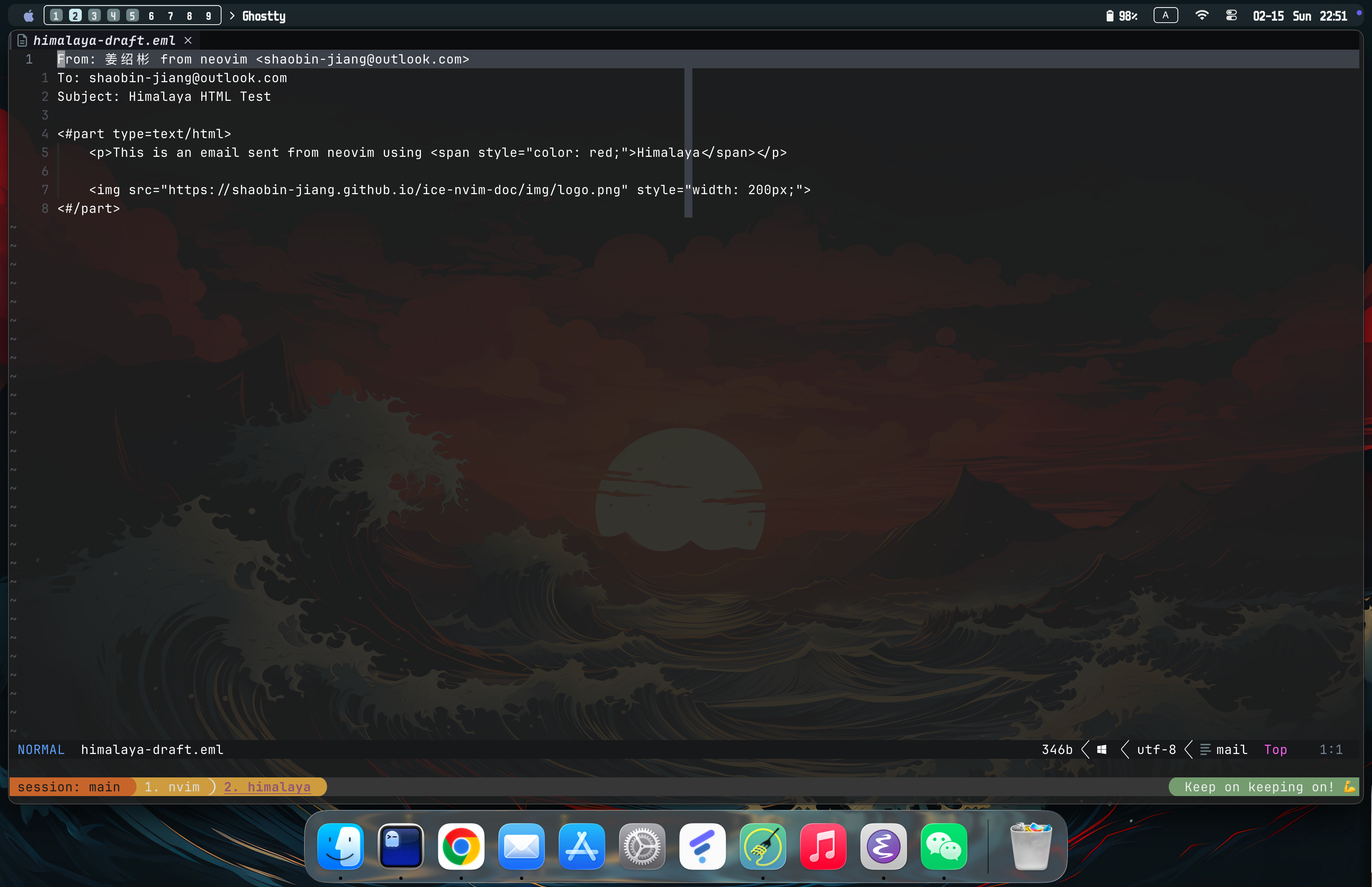
himalaya message write # 使用 $EDITOR 撰写邮件
|
4 未解决的问题
现在的 himalaya 有一个问题:它并没有本地存储功能,所以每一次查看 folder / message 都会去服务器上获取一次,这也导致目前 himalaya 用起来挺慢的。所以,虽然我在 emacs 中配置了 himalaya-emacs,但是它的使用体验实际上并不是很好。不过,看起来作者现在维护项目的热情还是蛮高的,而且似乎也表示未来会引入类似的机制,所以我们还是可以期待一下接下来的时间里,himalaya 会变得更加好用。